---
title: "Embed a live-stream video into your campaign"
description: "**Live-stream to your supporters and include contribution updates in real-time!** Live-streaming can be a phenomenal way to encourage contributions to your campaign. It’s the ultimate online engagement tool – plus a fantastic form of social proof if you include some…"
url: "https://connectionpoint.com/help/docs/embed-a-live-stream-video-into-your-campaign/"
updated: "2025-05-29"
category: Campaign Management / General Campaign Help
tags:
- Campaign sharing
- Communication
- contributions
- live streaming
- YouTube
---
# Embed a live-stream video into your campaign
**Live-stream to your supporters and include contribution updates in real-time!**
Live-streaming can be a phenomenal way to encourage contributions to your campaign. It’s the ultimate online engagement tool – plus a fantastic form of social proof if you include some simple code to make real-time contributions pop up for viewers!
**Click here to upload videos to the media gallery**[: https://connectionpoint.com/help/docs/how-to-add-or-change-the-campaign-cover-picture-video/#1-toc-title](https://connectionpoint.com/help/docs/how-to-add-or-change-the-campaign-cover-picture-video/#1-toc-title)
**Important: Live-streaming can be embedded via YouTube only at this time.**
## **Part 1: Embedding a live stream into your campaign.**
You can embed your live stream or your story in the media gallery.
### **Media Gallery**
**STEP 1 - **Click “Manage pictures and video” in the bottom left corner of your cover image.****
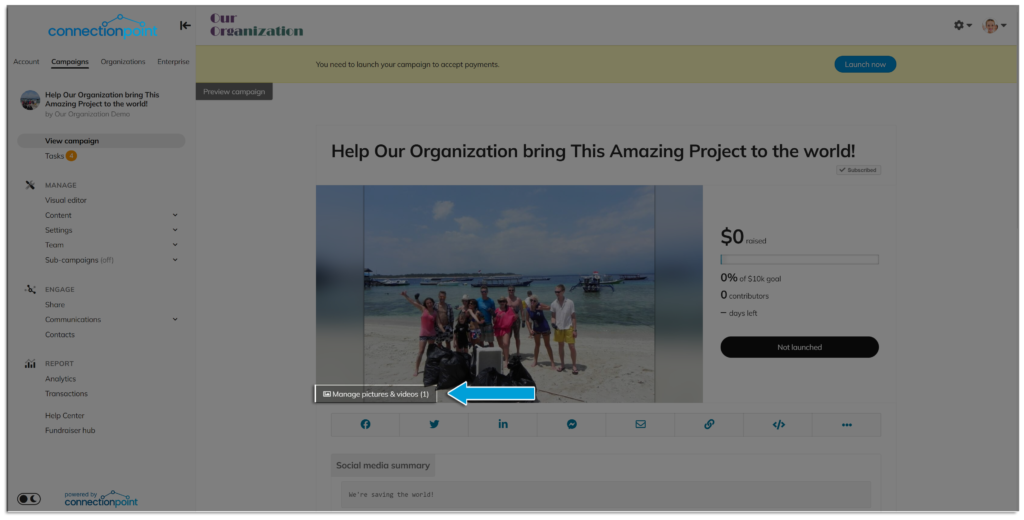
Or click 'Content' and then 'Cover picture and video' in the navigation menu, then 'Manage media' at the bottom.
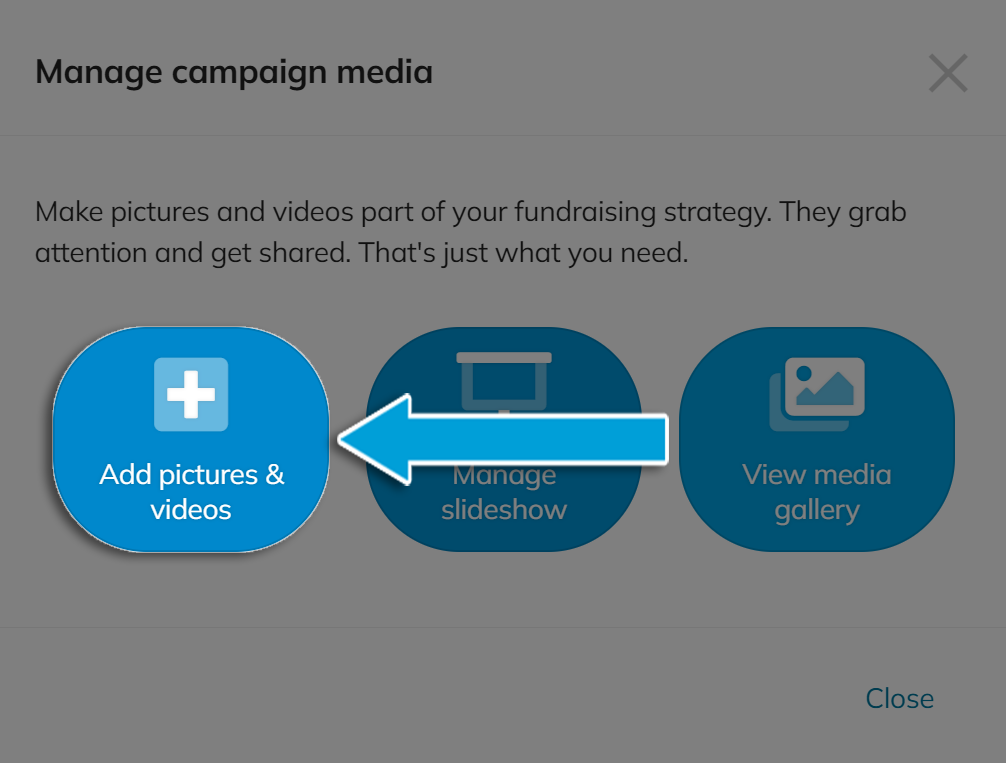
****STEP 2 – Click ‘Add pictures & videos**‘**
**STEP 3 – Click the video icon and choose ‘Add from YouTube’**
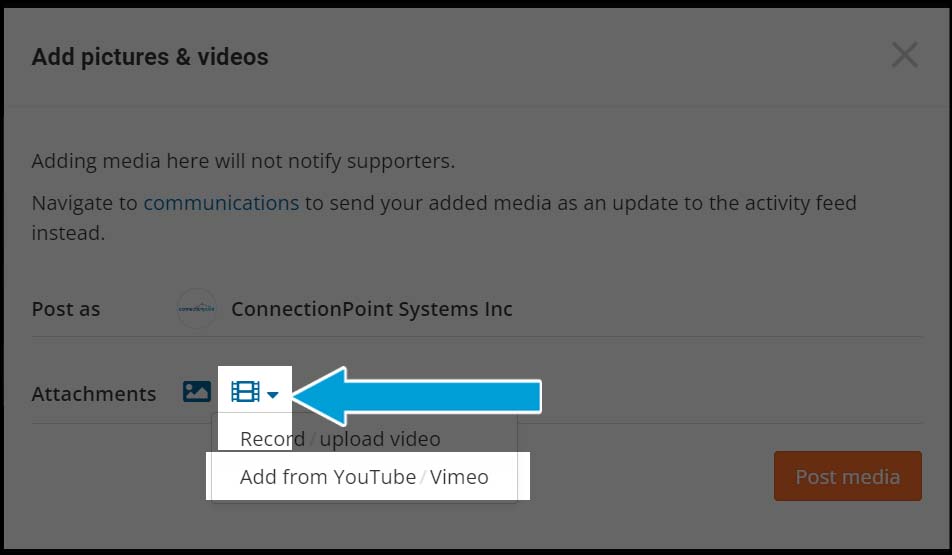
Reminder: You may only use YouTube at this time.
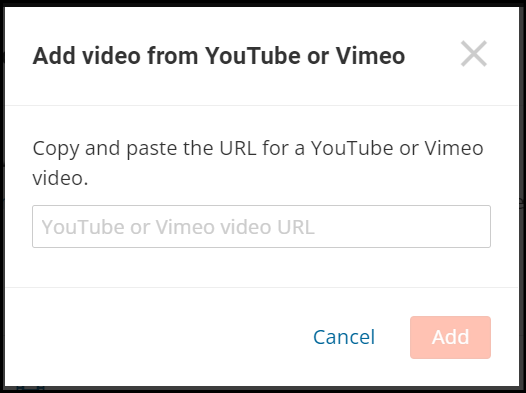
**STEP 4 – Insert the link for your live stream and hit ‘Add.’**
### **Story**
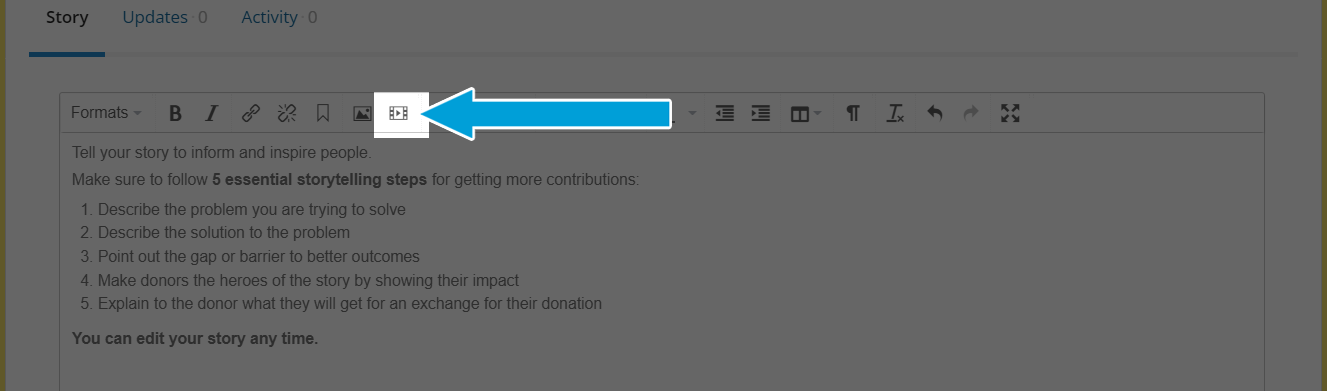
**STEP 1 - Insert a video by clicking the icon in the story editor.**
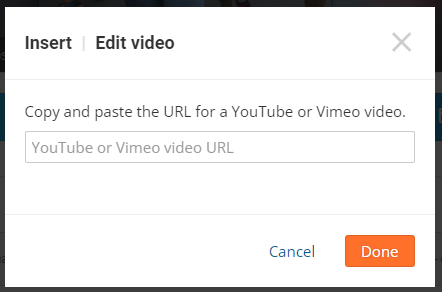
**STEP 2 - Enter the link to your desired video.**
**Make sure to save!**
## Part 2: How to overlay real-time contribution updates in your live stream.
**NOTE: **This will require some basic HTML knowledge. Don't hesitate [to get in touch with us](support@connectionpoint.com) if you need some help.
When doing a live stream using any streaming platform, you may want to ask people to support you in real-time and then give them thanks and shout-outs during your stream. This great engagement tool is rewarding for the people supporting you.
Attached below is a document (*notifications_for_crowdfunding_campaign.html*) for adding real-time notifications of contributions made to your campaign directly into your live streams:
[**DOWNLOAD FILE HERE**](https://connectionpoint.com/help/wp-content/uploads/2022/12/notifications_for_crowdfunding_campaign.html)
This HTML document is self-contained, and while you can host it on the Internet if you want to, it works perfectly from anywhere on your computer. This file provides a transparent window to overlay over your live stream. When someone makes a contribution or pledge to your campaign, a small box overlays with the supporter’s name (if they aren’t anonymous) and what they contributed or pledged. You and your audience will see this box in your stream, and you can comment on it.
When you’re ready to test or use this file, open it in any browser and add it as a “Browser Source” to OBS or another streaming service. Here is an example URL for “Browser Source” in OBS or other streaming software when it’s on your computer:
`file:///Users/alice/Documents/notifications_for_crowdfunding_campaign.html?campaign=f1t2Y1&demo=true`
#### **Parameters**
Using the following URL parameters (the items that come after the ? in the URL above), you will set from where this HTML document gets its contribution data to display when you open it to overlay it in your live stream.
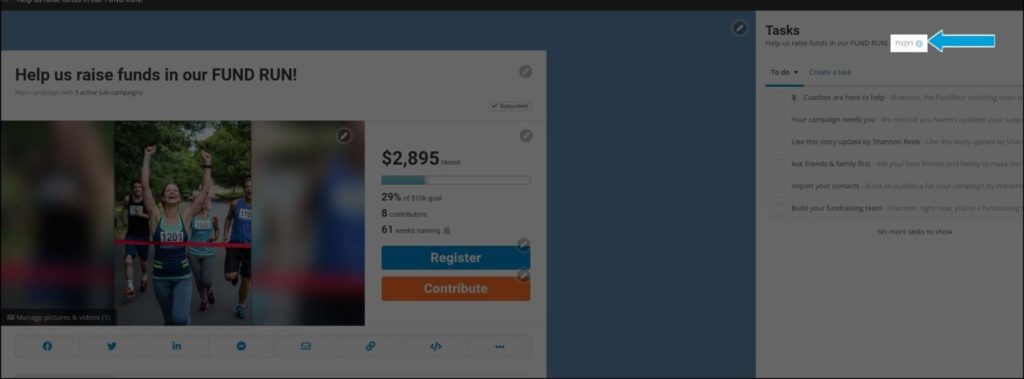
**Campaign** – The ID of the campaign you want to subscribe to. You can find this at the top of your campaign’s Task List next to the name:
**Demo** – A boolean to toggle the demo mode. Valid values are either *true* or *false*. If the query parameter is not specified, it defaults to false (meaning you can also delete it completely from the end of the URL). If set to *true*, you can test the real-time notifications in demo mode without needing actual contributions. In this case, a new sample notification will be shown every five seconds.
Once you test the overlay with demo data, you might want to change some of the default styling and layout that we used to make it better match your style and the live stream background. You can edit and save the file on your computer using any text editor. The relevant sections can be found within the ** block, the ** block, as well as the *showToast* function. This will require some CSS expertise.
---
[](https://fundrazr.com)
[](petfundr.com)
[](https://crowdfundr.com)
[](https://cocopay.co)